How to send debug logs
If you have a problem, your debug logs help us find and fix it quickly. Sending them takes about a minute. Follow the steps for your device.
Reproduce the issue before you start. Vuleo records logs all the time. You do not need to turn logging on. Make the problem happen one more time. Then open Debug Logs immediately. The logs already contain the details.
Follow these steps on your phone or tablet (iPhone, iPad or Android).
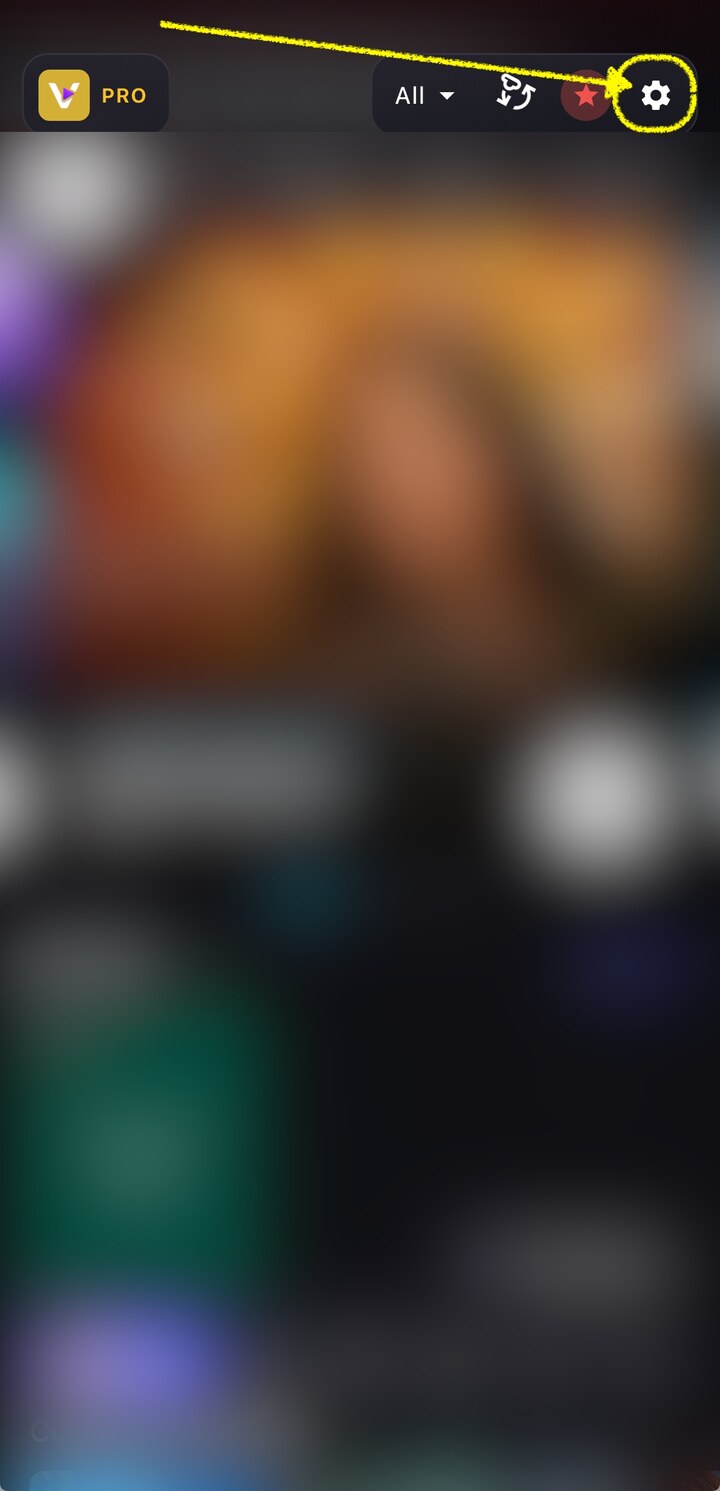
Open Settings
On the home screen, tap the Settings gear in the top-right corner.
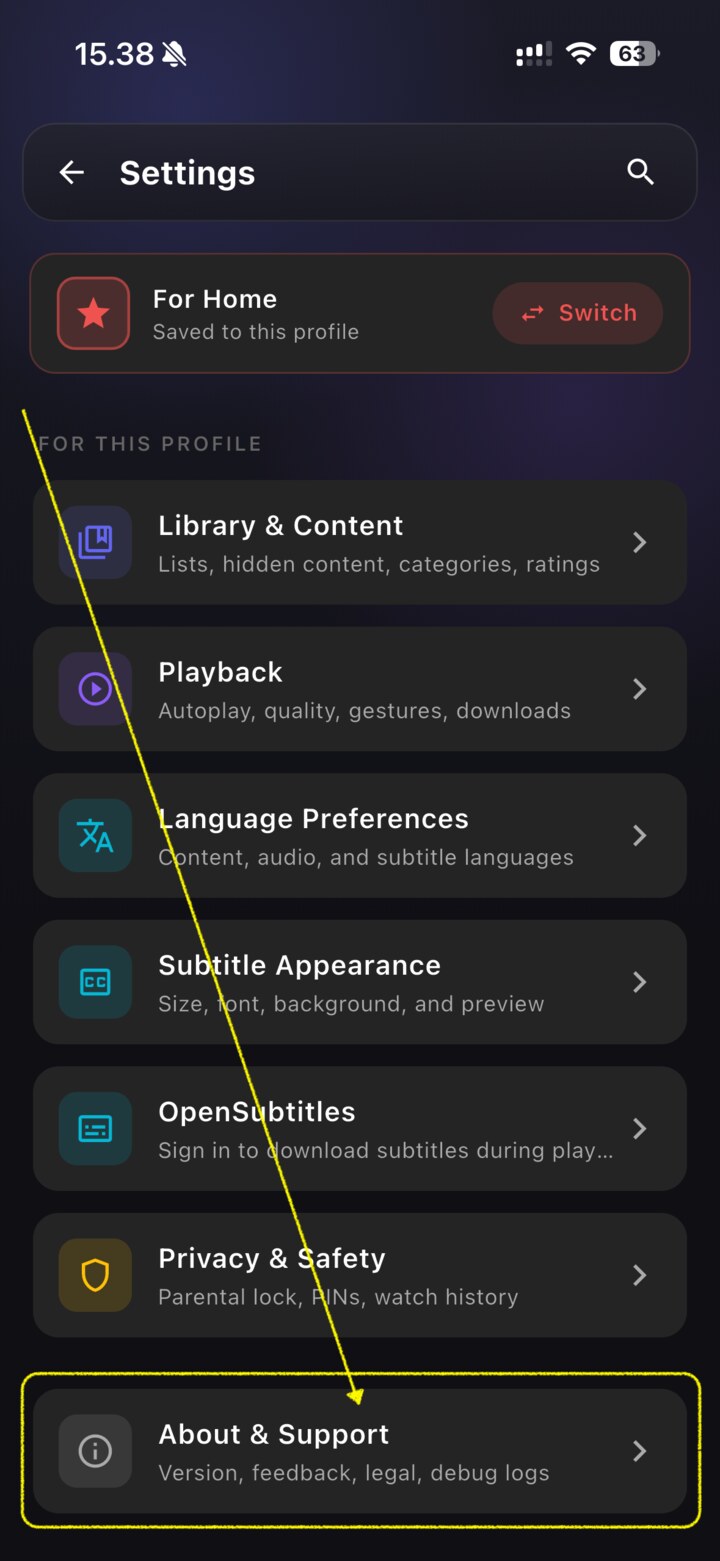
Tap “About & Support”
In Settings, tap “About & Support”. Its subtitle reads “Version, feedback, legal, debug logs”.
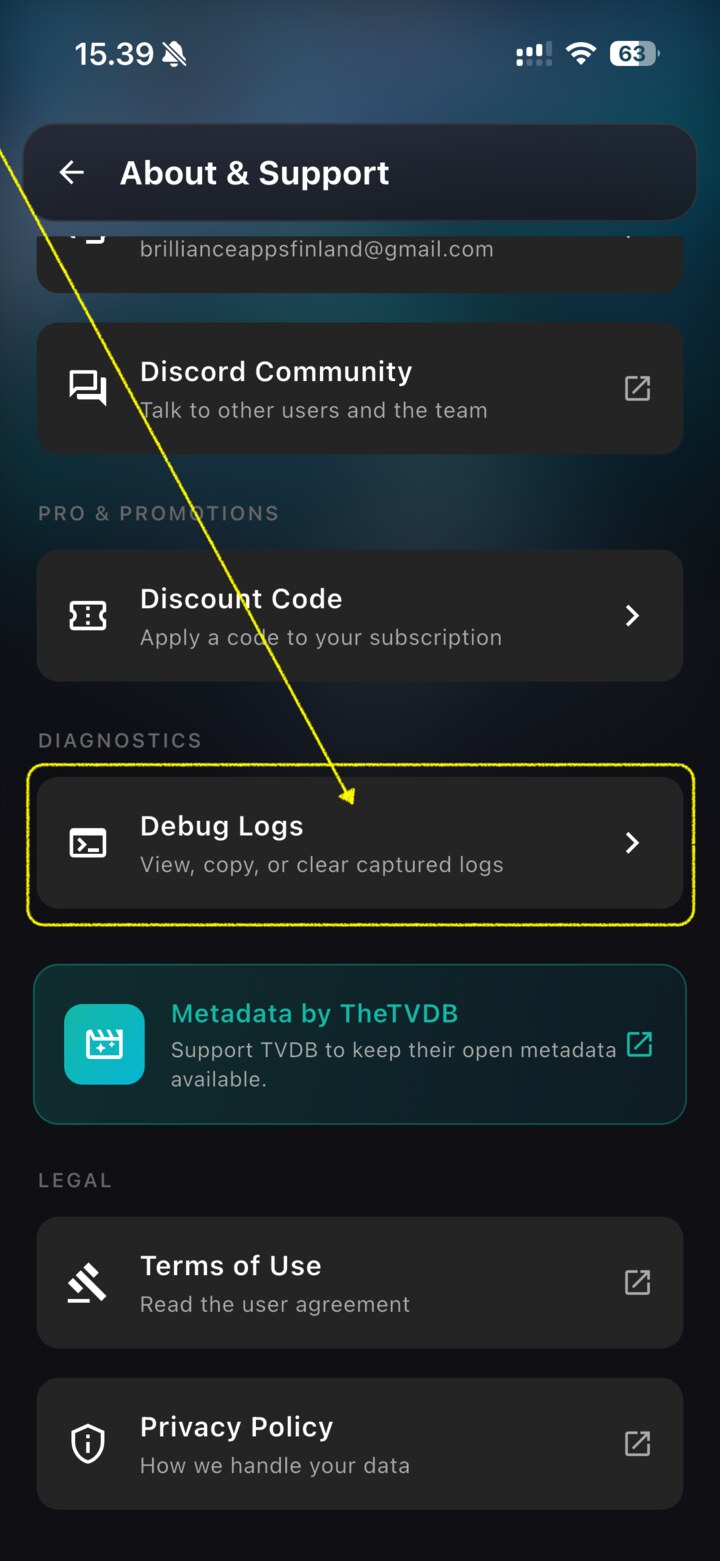
Open “Debug Logs”
Scroll to the Diagnostics section and tap “Debug Logs”.
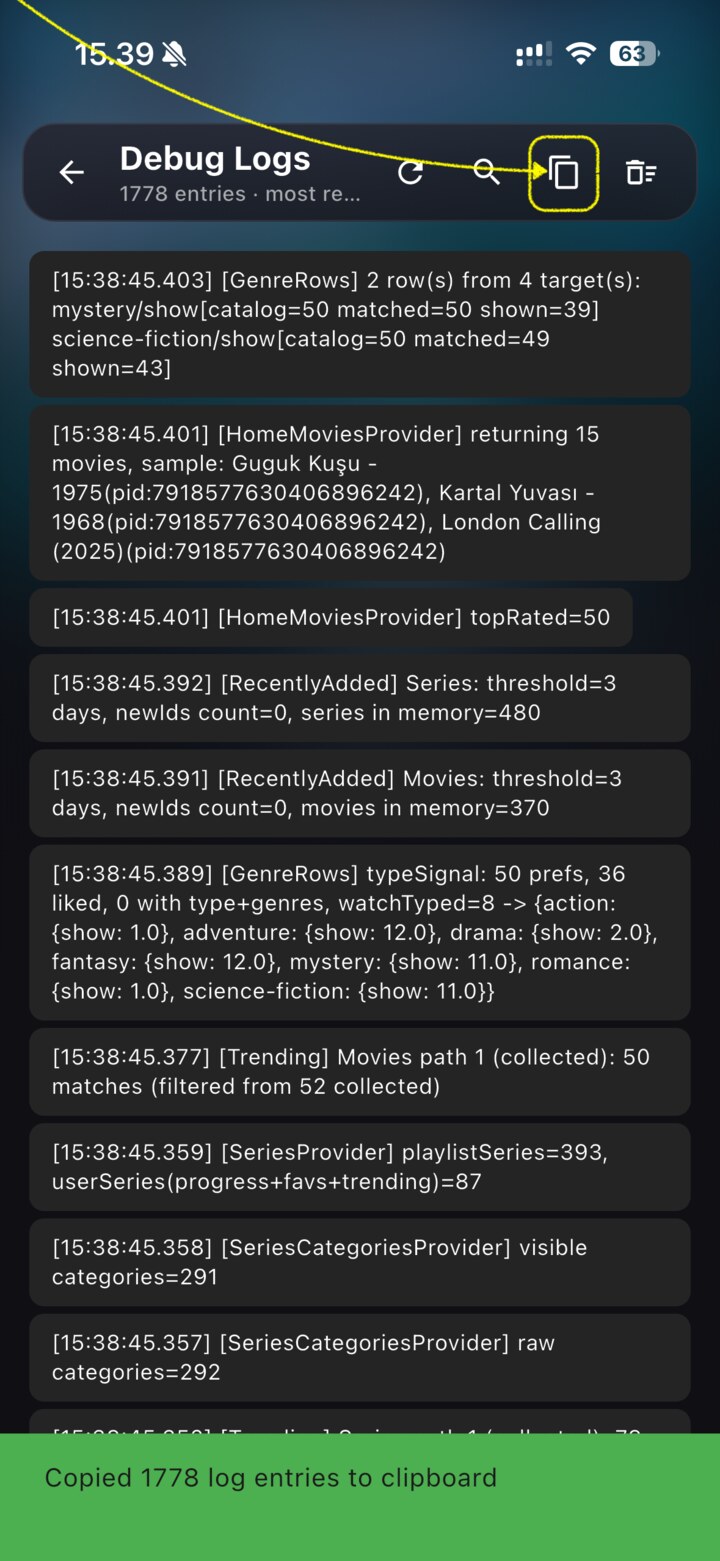
Tap “Copy logs”
At the top of the Debug Logs screen, tap the Copy logs icon. This copies everything to your clipboard.
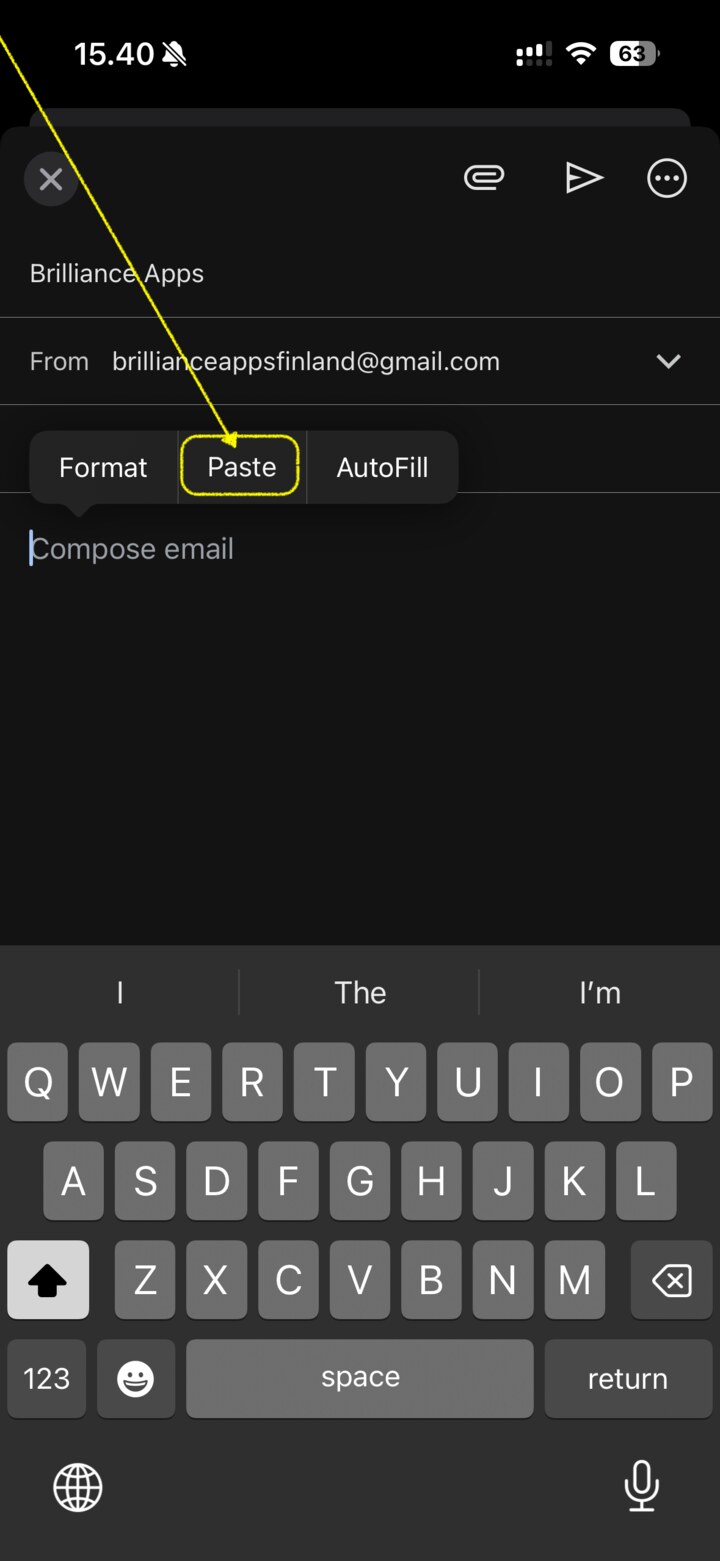
Paste into an email & send
Open your email app and start a new message to the address below. Paste the logs into the body and send the email. A short note about what went wrong also helps.
Android TV and Google TV have no keyboard for email. The app therefore sends the logs to your phone with a QR code. Keep your phone near you for these steps.
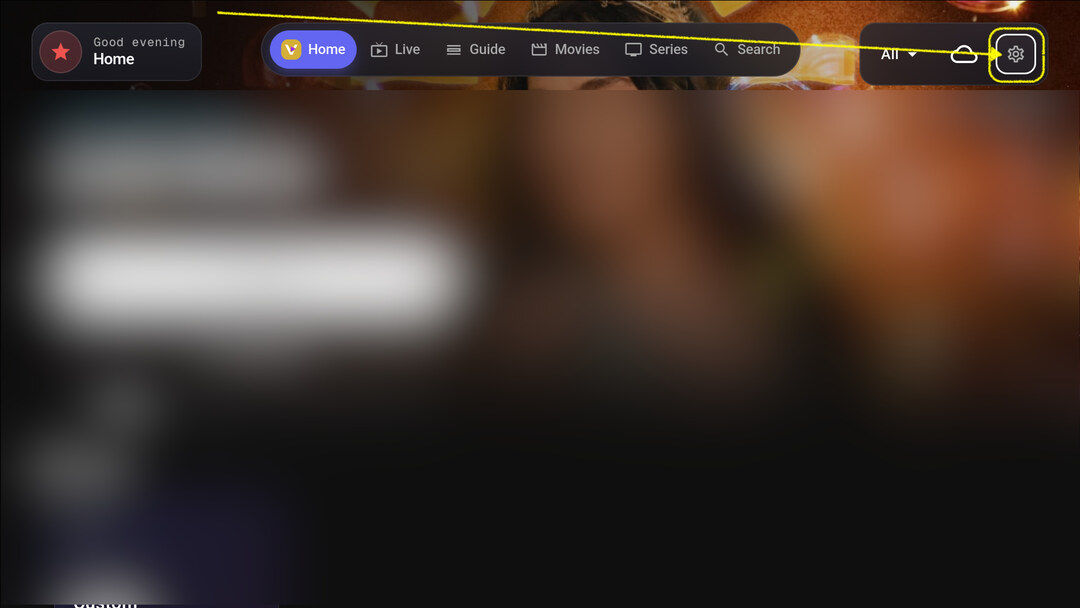
Open Settings on the TV
On the home screen, use the remote to select the Settings gear in the top-right corner.
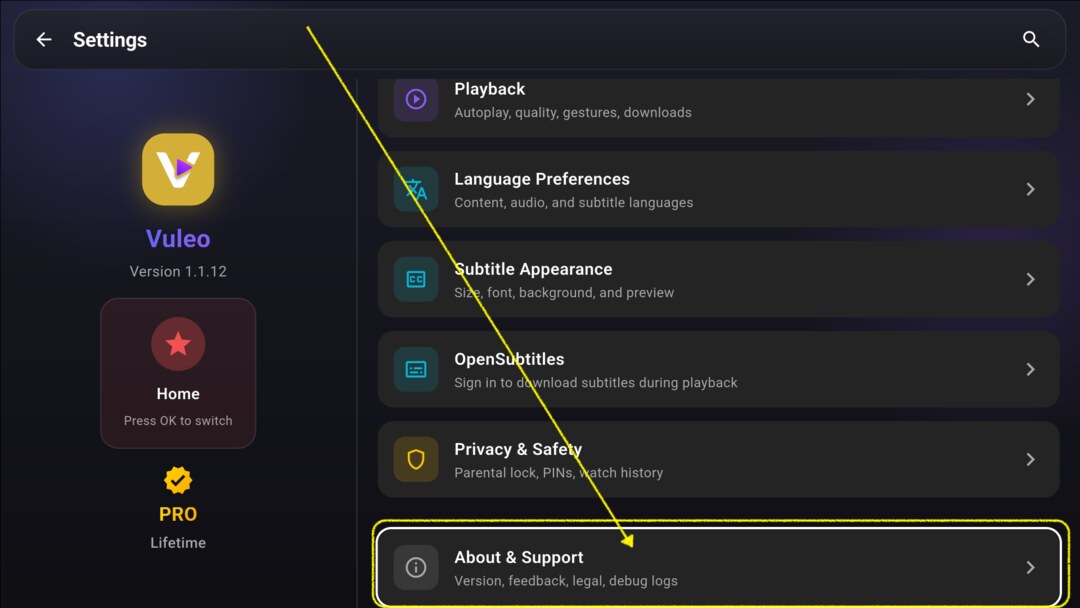
Go to “About & Support”
Select “About & Support” from the Settings list.
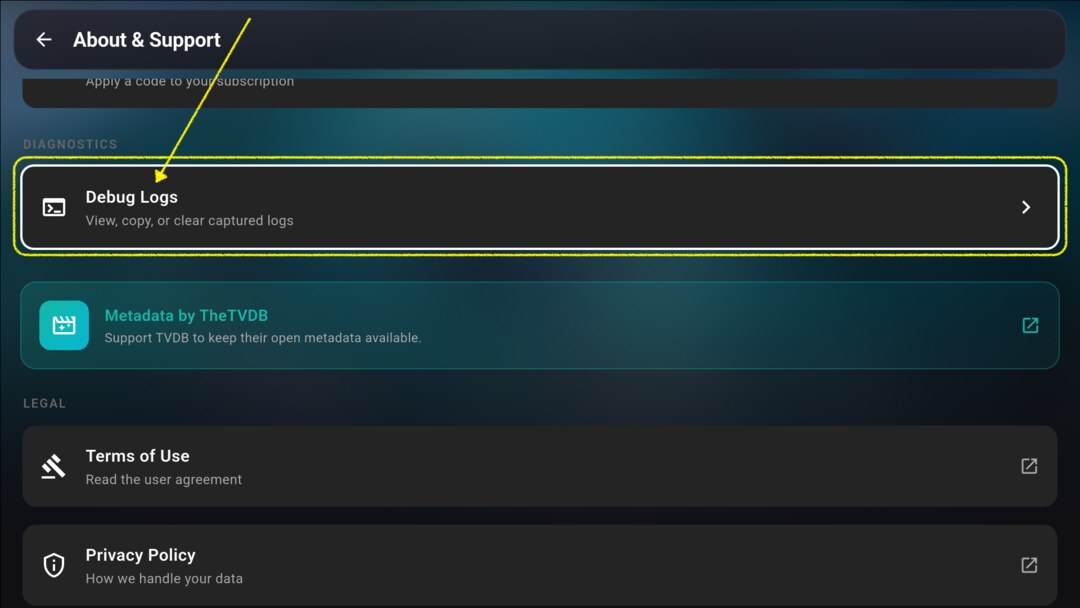
Open “Debug Logs”
In the Diagnostics section, select “Debug Logs”.
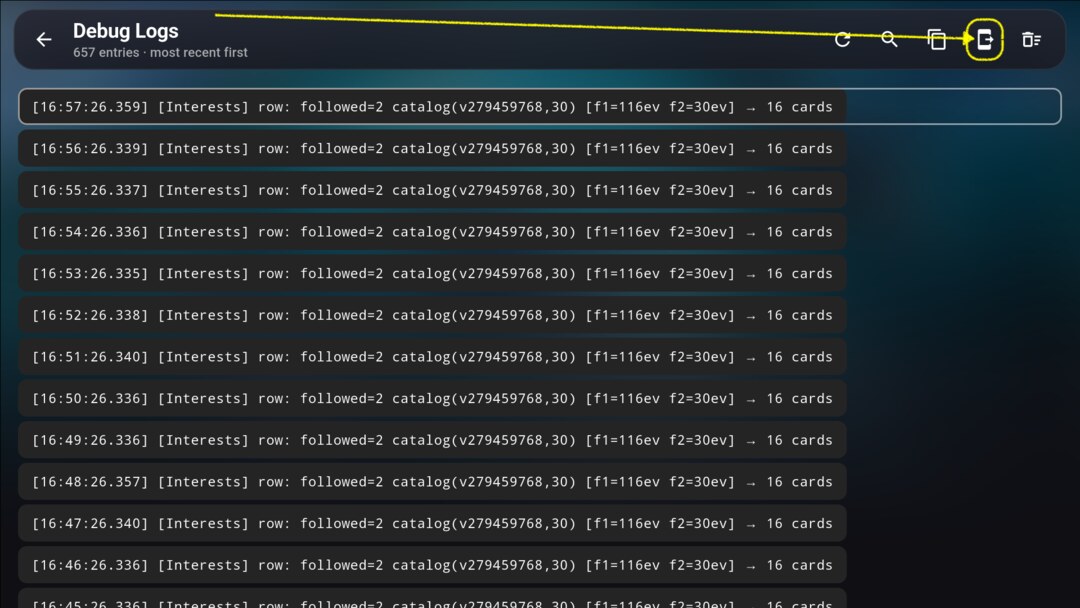
Select “Send to phone”
At the top of the Debug Logs screen, choose Send to phone . A QR code will appear.
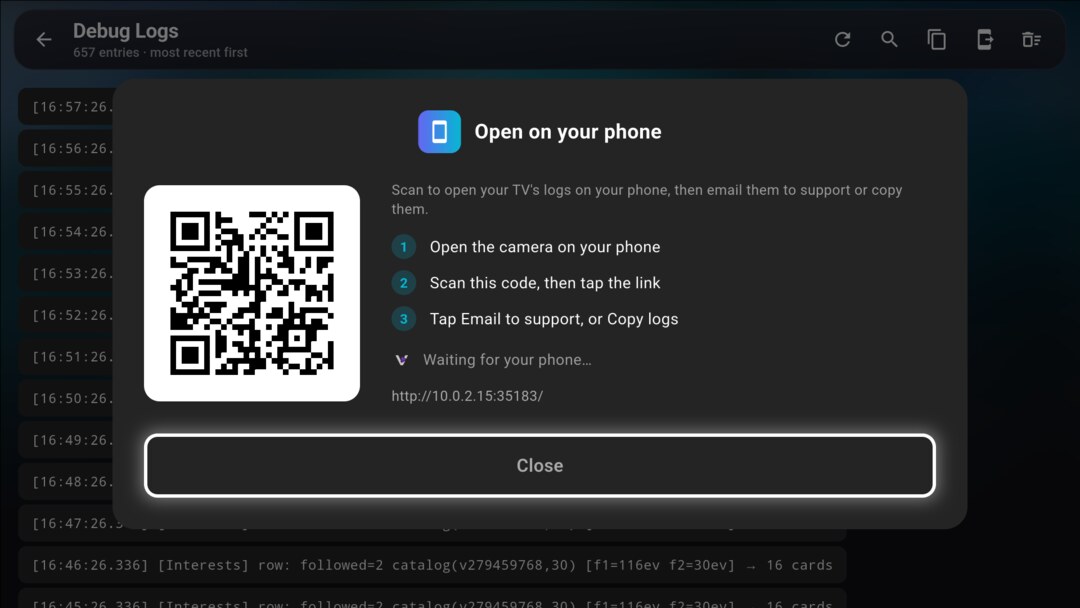
Scan the QR code with your phone
Open the camera on your phone and point it at the QR code on the TV. Then tap the link that appears.
Make sure your phone and TV are on the same Wi-Fi network.
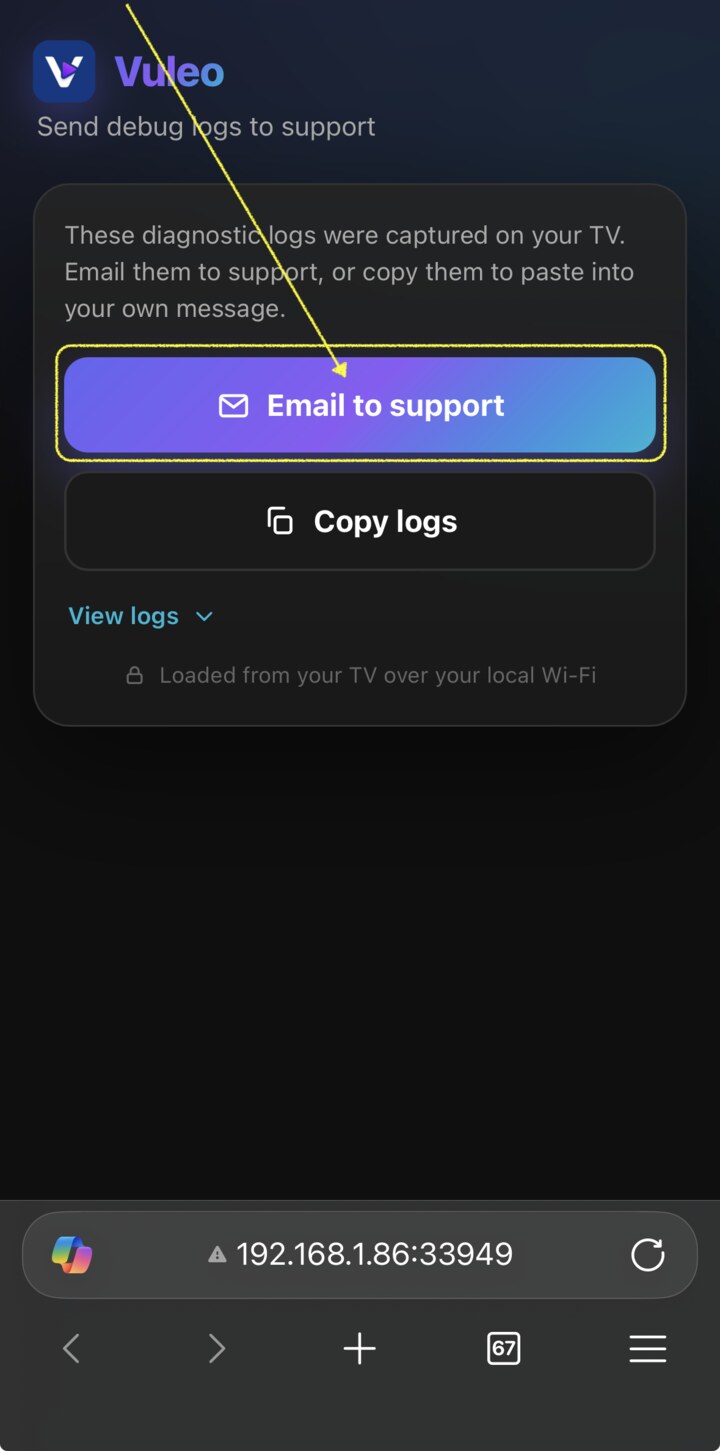
Tap “Email to support”, then paste & send
The page that opens on your phone loads the logs from the TV. Then tap the Email to support button. The page copies your logs automatically and opens a new email. Paste the logs into the message and send it. To paste, long-press the message body and choose Paste.